Amazon Mechanical Turk (MTurk) is a powerful vehicle for getting tasks done quickly and efficiently but it works a bit differently from other crowdsourcing marketplaces. The terms HIT and Assignment can be confusing to those that are new to MTurk and just want to get a spreadsheet worth of data processed. In this tutorial we’ll explain how to go from a spreadsheet to completed results and provide details on how we made decisions about HITs and Assignments.

Starting from a spreadsheet
Many Requesters start using MTurk with a spreadsheet they want processed. One option is to send this big file of data off to a freelancer and ask them to spend the next week on the task. While that is a good option in some cases, it typically takes far too long and there aren’t great ways to measure the quality of the work being done by your freelancer.
The power of MTurk is in the ability to slice that spreadsheet up into individual tasks that can be completed by many Workers. By splitting it up, you get results much more quickly. And by asking that each task be done by two, three, or more Workers, you can ensure that the results you get back are of the highest quality possible.
Let’s start with an example, we want Workers to identify the objects in all of the images stored in a spreadsheet:
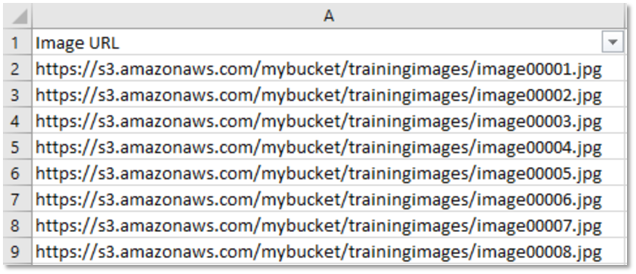
Faster results are only part of the story. With MTurk it’s easy to assign the same HIT to multiple distinct Workers. These are called Assignments and it’s a powerful way to increase the accuracy of your results. In this case, we’re going to assign each item to three Workers:

For example, here Worker A2XXXXXXXX accidentally clicked the wrong button and selected rabbit instead of dog, but because we have two other Workers letting us know it’s a dog, we can assume their answer is correct. If for some reason all three Workers disagreed, that could be a signal that the image or the instructions are confusing and it needs to be reviewed separately.

MTurk in practice
Let’s set this Project up in MTurk. To start we’ll visit the Create tab on the Requester website and select Image Classification and Create Project.

Now we can continue on to design the layout of our task, including adding instructions for our Workers. More information on doing this for various task types including image categorization can be found in other MTurk Tutorials.


Next steps
There are a variety of techniques for identifying and handling cases where Workers disagree depending on the type of task being performed. We’ll address those in future tutorials.
We hope you found this to be a helpful introduction to HITs and Assignments. If you have any questions, please post a question to our MTurk forums.

So, now you are perfect to Join Amazon's Mturk, use the below ink to sign up and start working. Click the link below and go and create a Creator Account and follow the instructions. (Remember, you will have spend some time to be familiar with the website and know the features and settings it has. No one can help you as a guide through it, you will have to practice it on your own; Once you mastered the website, then you will earn every second you set your mind to). Now go and sign up!